
Wednesday
19 November

Objective
Using a question box on your stories is another great way to encourage your audience to interact with your content. Each reply you get to your question box helps boost your engagement.
Choose your background image
Find an aesthetic image of your work or use our stock library to find a suitable image
Upload to your Instagram Story
Add new Instagram Story
Upload image from your camera roll
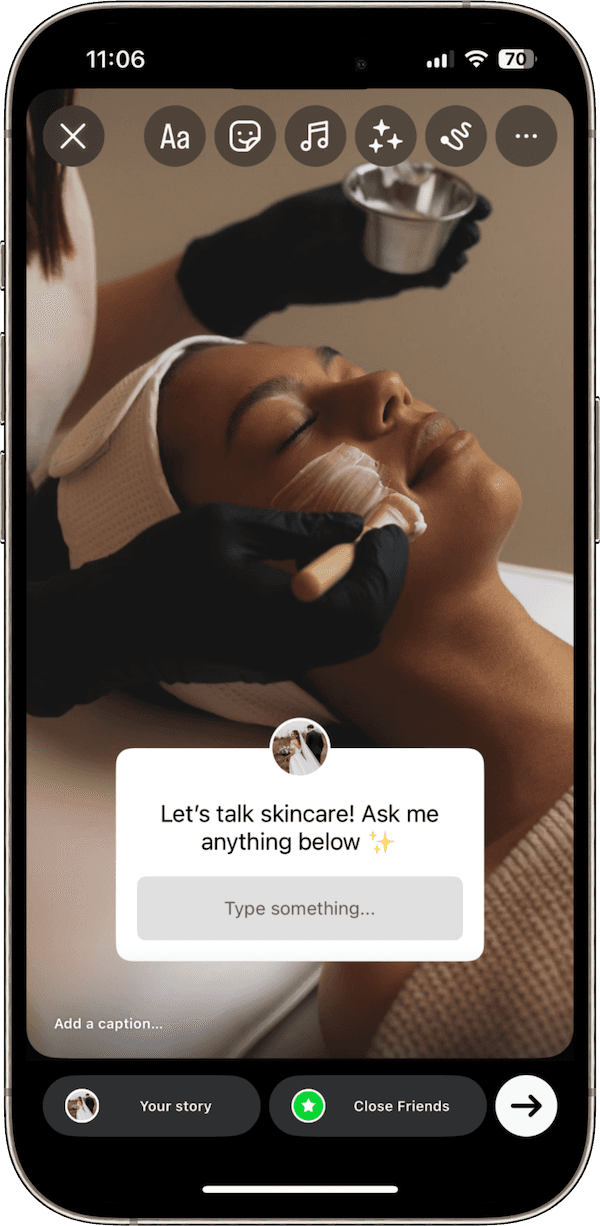
Add your question box
On the Instagram Story, click the sticker icon
Click 'questions'
Enter your question title
Post to story
Ideas:
Keep open-ended: "Ask me anything!"
Open up educational questions to show your expertise: "Let's talk skincare! Ask me anything…"
Go for something fun & engaging: "What are the beauty products you can't live without at the moment?"
Reply to any responses
View Responses: Go to your story and swipe up to see the responses to your question box.
Select a Response: Tap on the response you want to answer.
Choose Your Reply Method: You'll have a few options:
Reply privately: Tap the "Reply" button to send a private message to the user who submitted the question.
Share to Story: Tap "Share response" to incorporate the question and answer into a new Instagram Story post.
Design Your Story (if sharing publicly):
Add a background: Add a photo from your camera roll
Add text: Add your own text to the shared response.
Place the sticker: Resize and position the response sticker on your story.
Post to Your Story: Tap the button to post the new story with the shared question and response.